

User-Authenticated Connections
By default, all connections share one set of service credentials on the Add/Edit Connection page. However, you can configure a connection so that each user has unique credentials for that connection, ensuring that source roles and permissions are enforced on the data.Table Access
You can control access to the tables in Connect AI at the source or workspace level, as explained below.On the Edit/Add Connection Page
Note that in the Permissions tab of the connection only allows you to edit the permissions at the connection level. To edit permissions at the workspace level, go to the Users page. When you create or edit a connection, the Permissions tab displays a list of available users and allows you to assign permissions to each one. Permissions are described in the list below:- Select: Enables the user to select rows from tables in a connection.
- Insert: Enables the user to insert rows into tables of a connection.
- Update: Enables the user to update rows in tables of a connection.
- Delete: Enables the user to delete rows from tables in a connection.
-
Execute: Enables users to execute stored procedures in a connection.
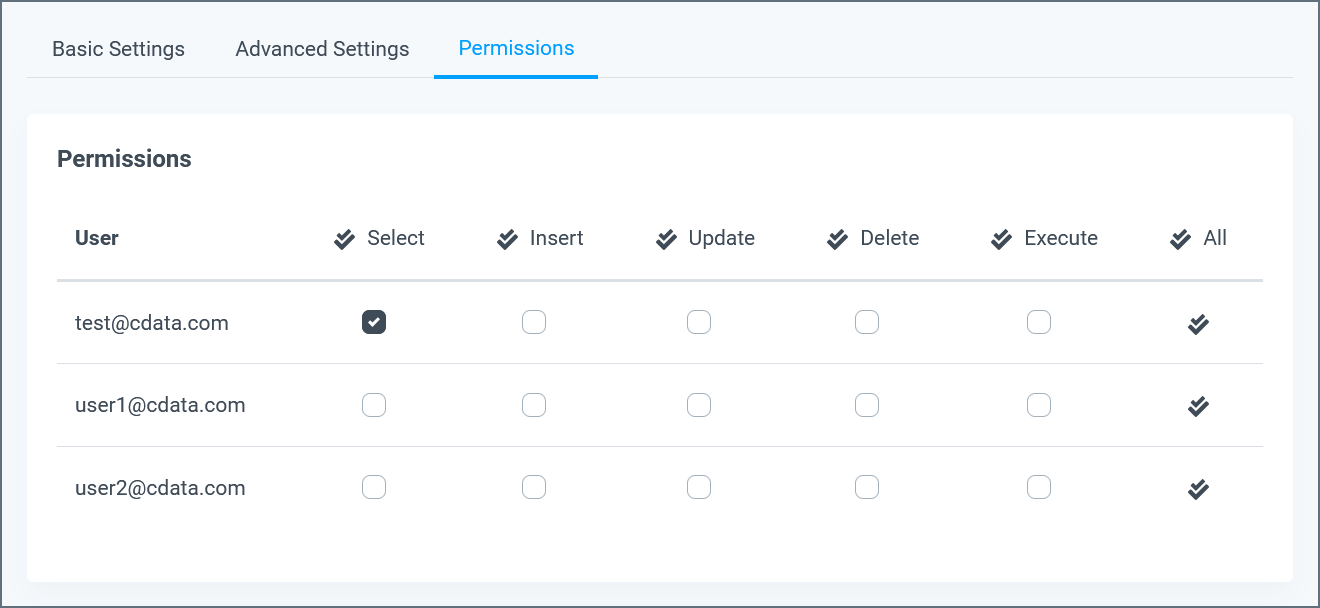
- Click an individual box to enable a permission for a single user.
- Click the top of a table column to toggle that permission for every user.
On the Users Page
To edit a user’s permissions:1
Click a user in the list, or click the Edit button to open the Edit User page.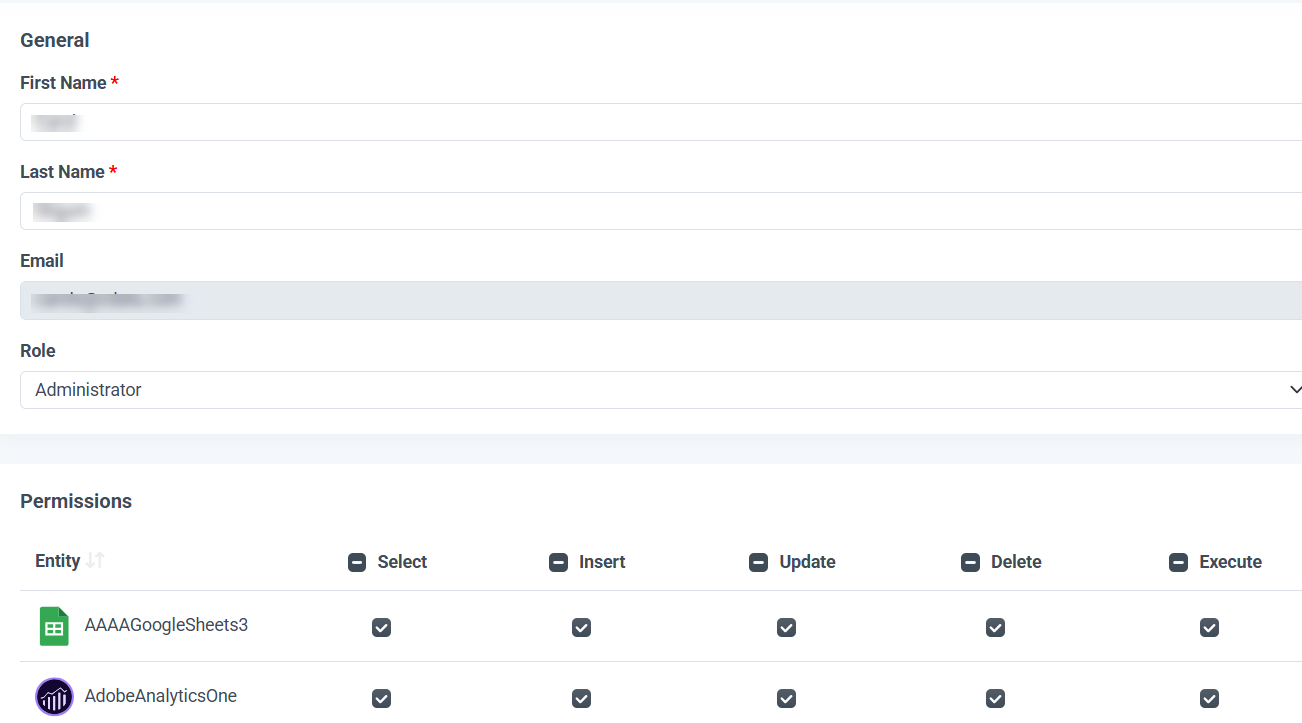
2
On the Edit User page, select the permissions allowed for each connection or workspace (select, insert, update, delete, and/or execute). Click the top of a table column to toggle/remove that permission for every connection and workspace.